Manage Custom Converters
XamlFiddle offers a useful feature that allows users to integrate custom converters into their projects. Below is a step-by-step guide to using this feature.
Accessing the Custom Converters Feature
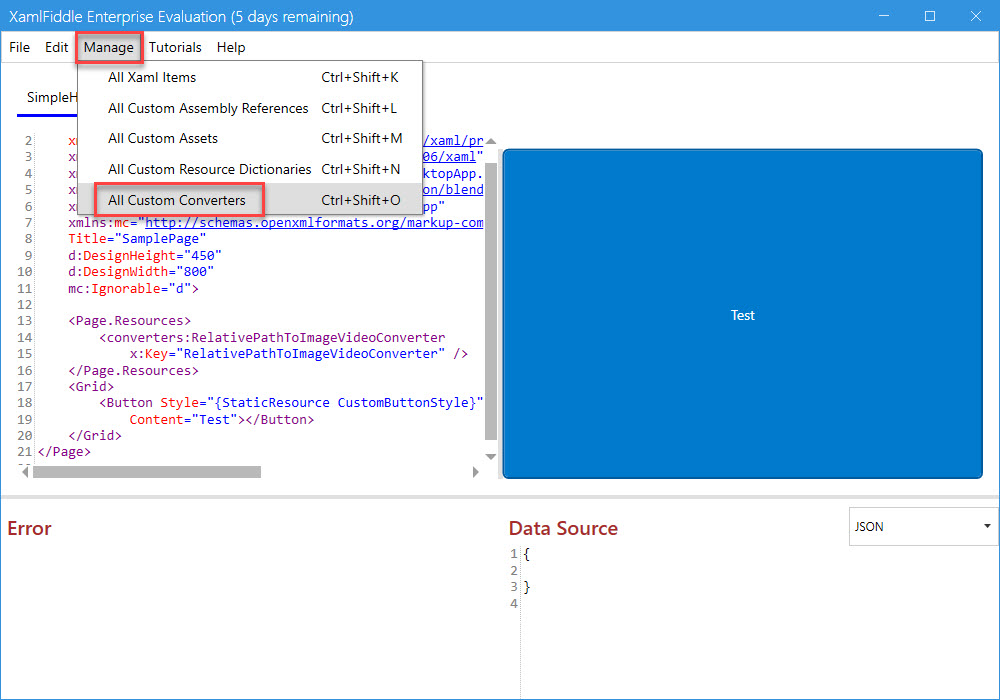
To access the custom converters feature, click on the menu: Manage > All Custom Converters
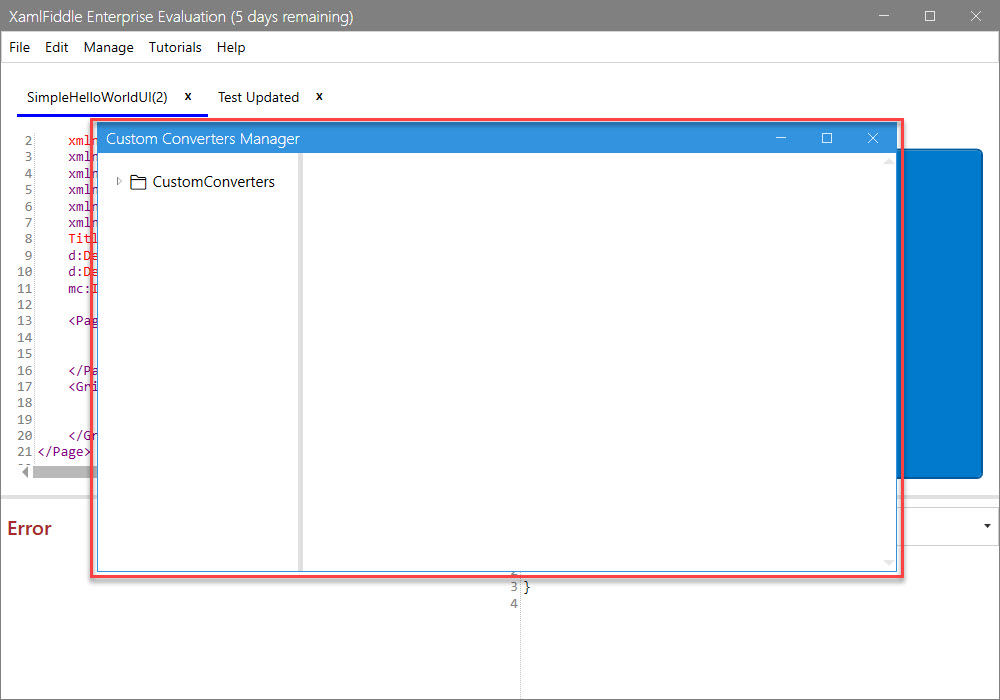
This will open a dialog window as shown below:
Viewing Built-In Converters
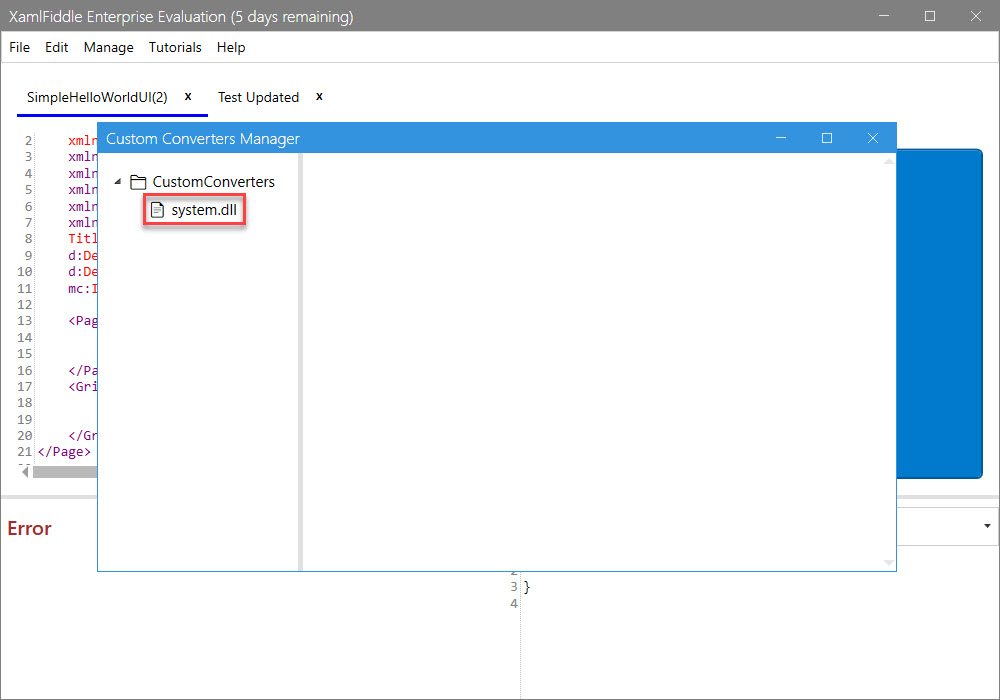
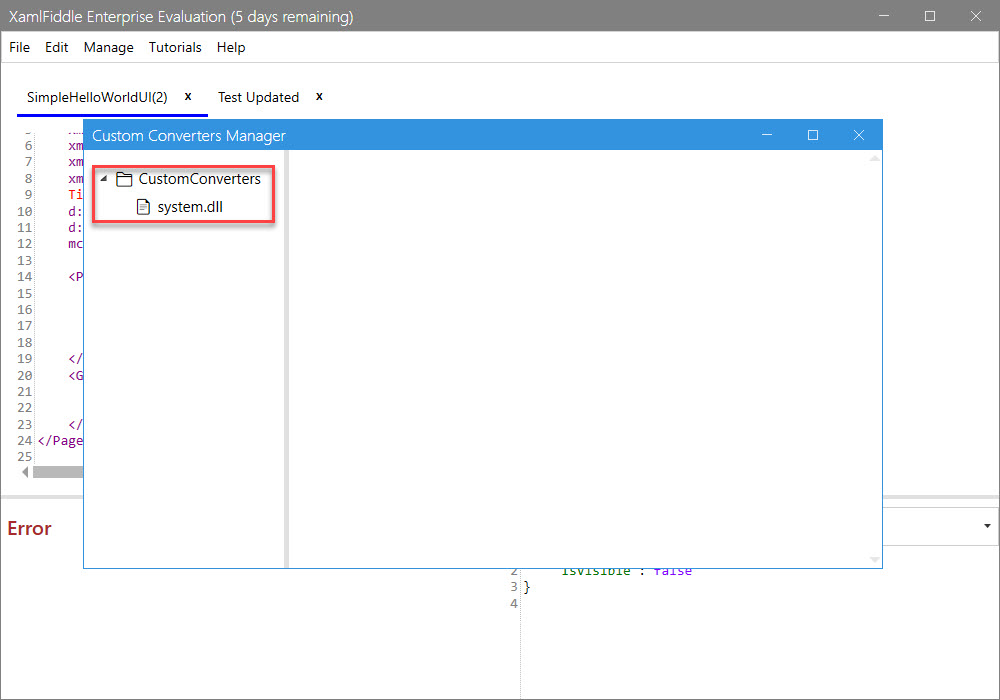
To view the list of built-in converters, expand the CustomConverters folder by clicking on it:
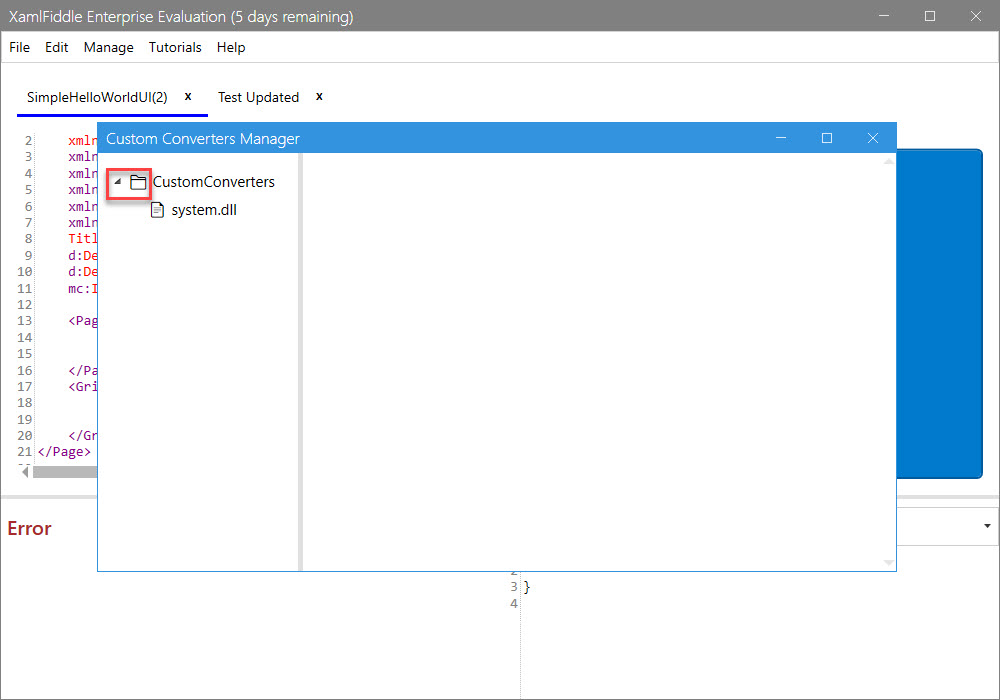
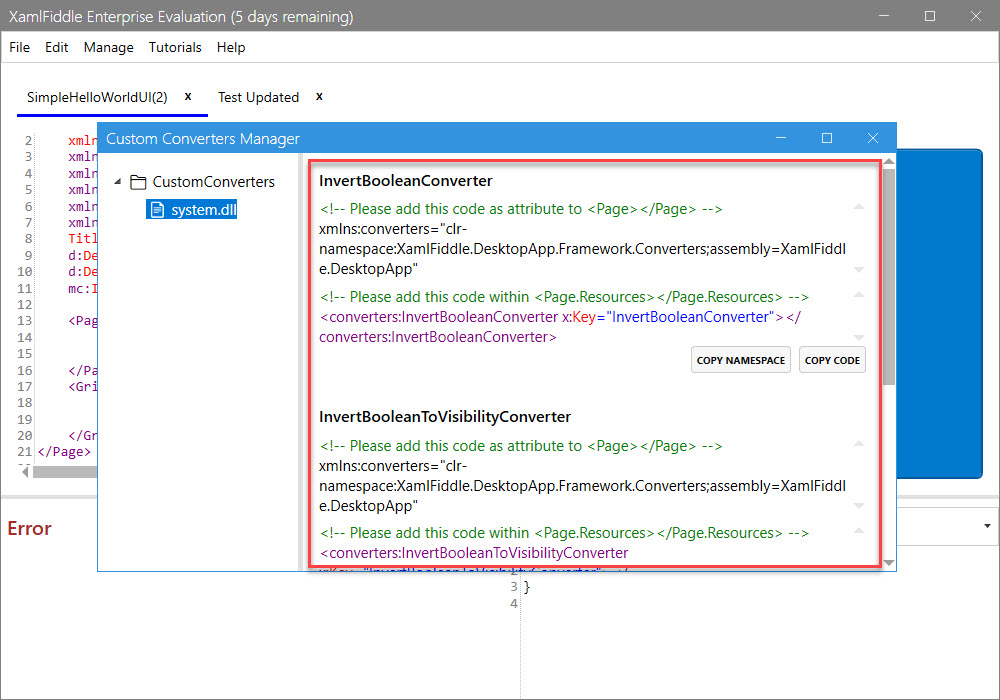
Next, click on system.dll to view the built-in converters:
Finally, you'll see a list of the available built-in converters:
Uploading New Custom Converters
If you'd like to use your own custom converters, XamlFiddle allows you to upload them. To do this:
-
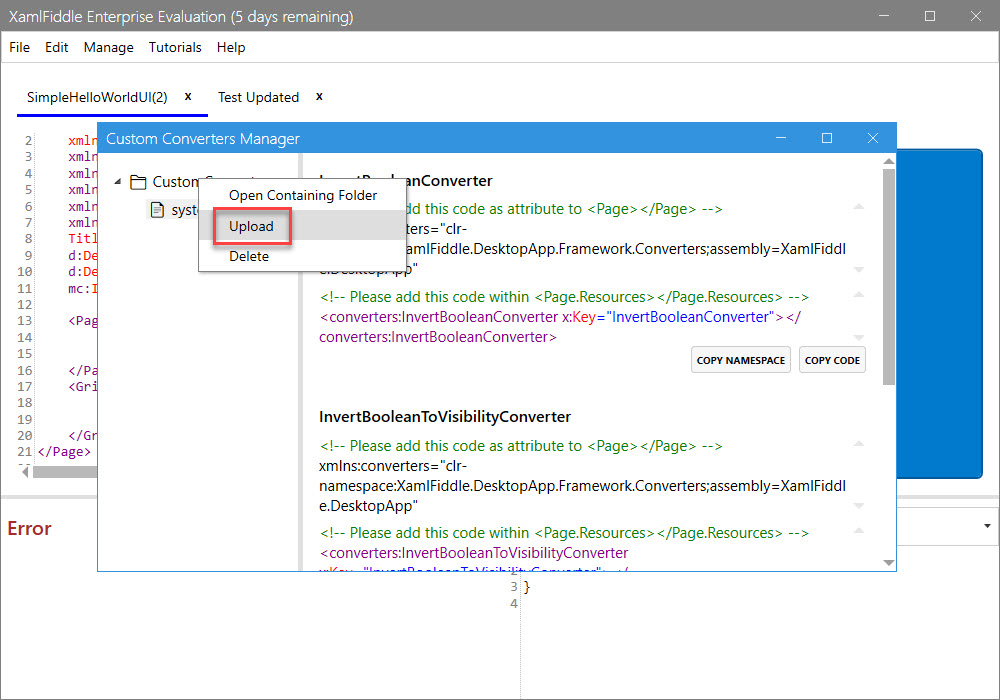
Right-click on the CustomConverters folder and select Upload:
-
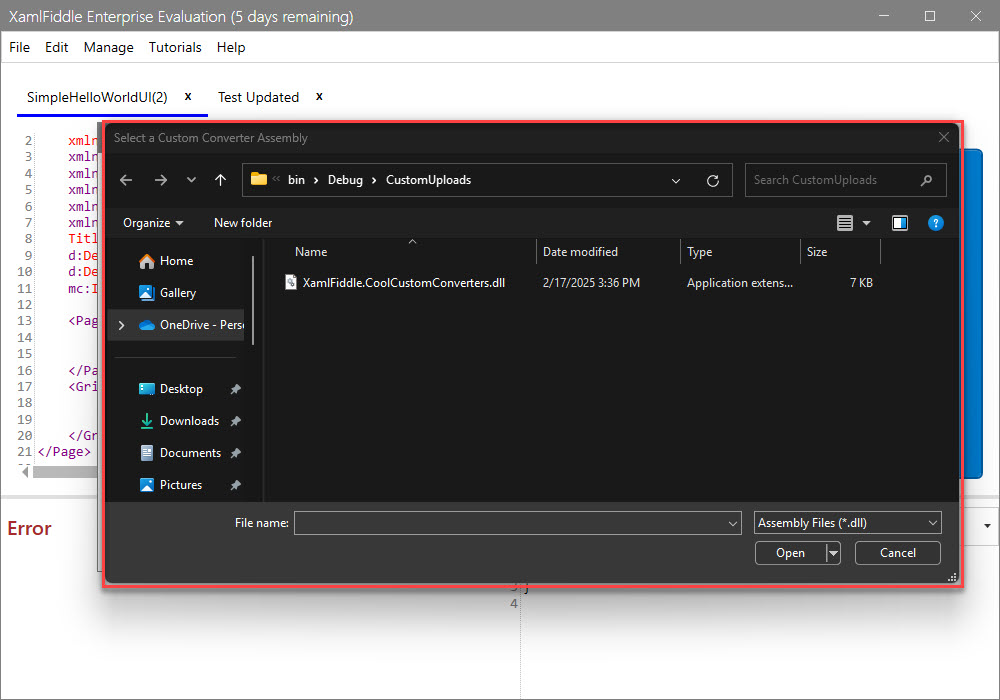
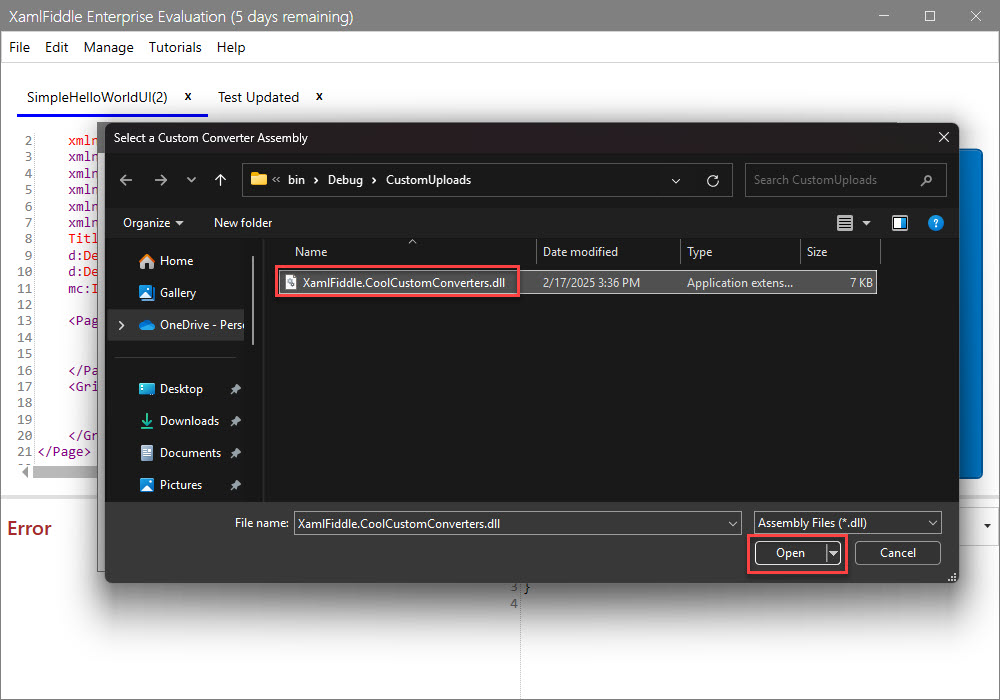
A dialog will appear for you to choose your converter file:
-
Choose the desired file, such as XamlFiddle.CustomCoolConverters.dll:
-
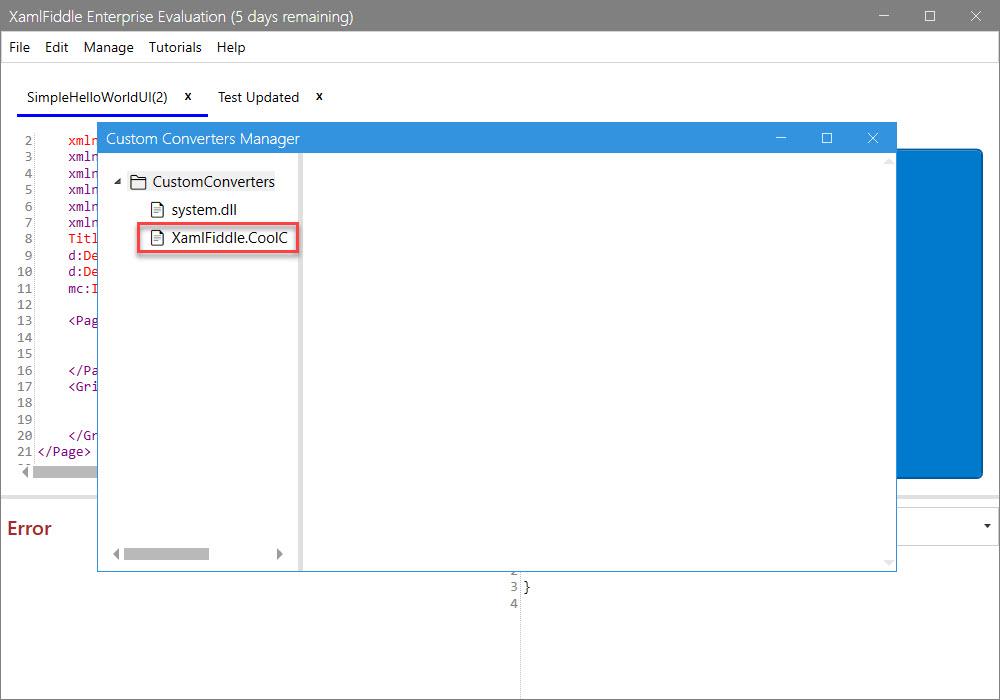
Once the converter is loaded, you'll see it listed:
-
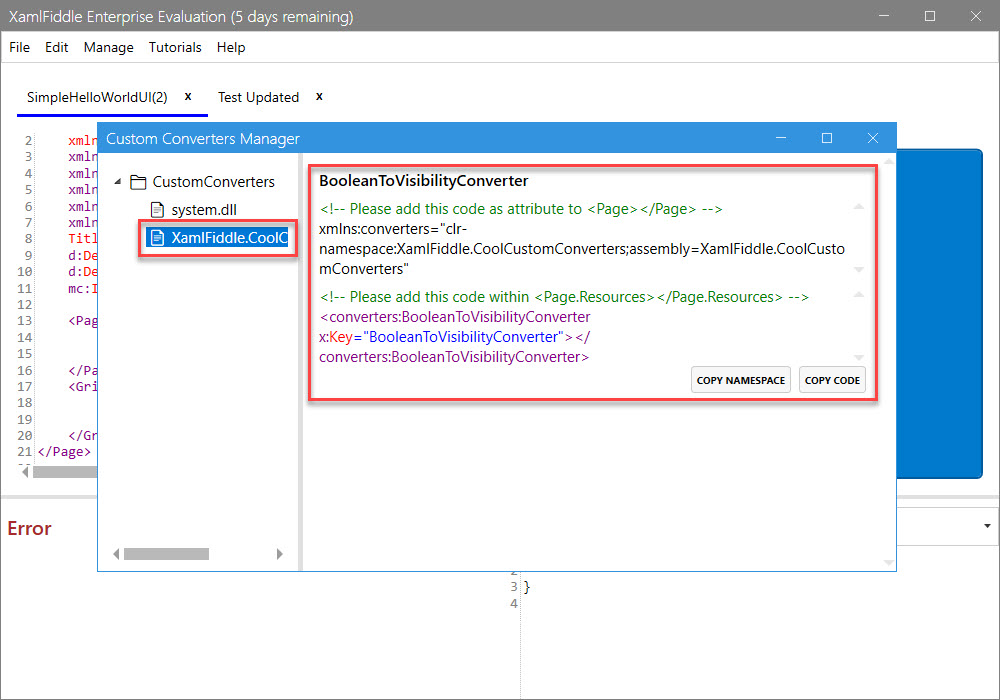
Click on XamlFiddle.CustomCoolConverters.dll to view its built-in converters:
Integrating Custom Converters into a XAML Item
To integrate a custom converter into a XAML item:
-
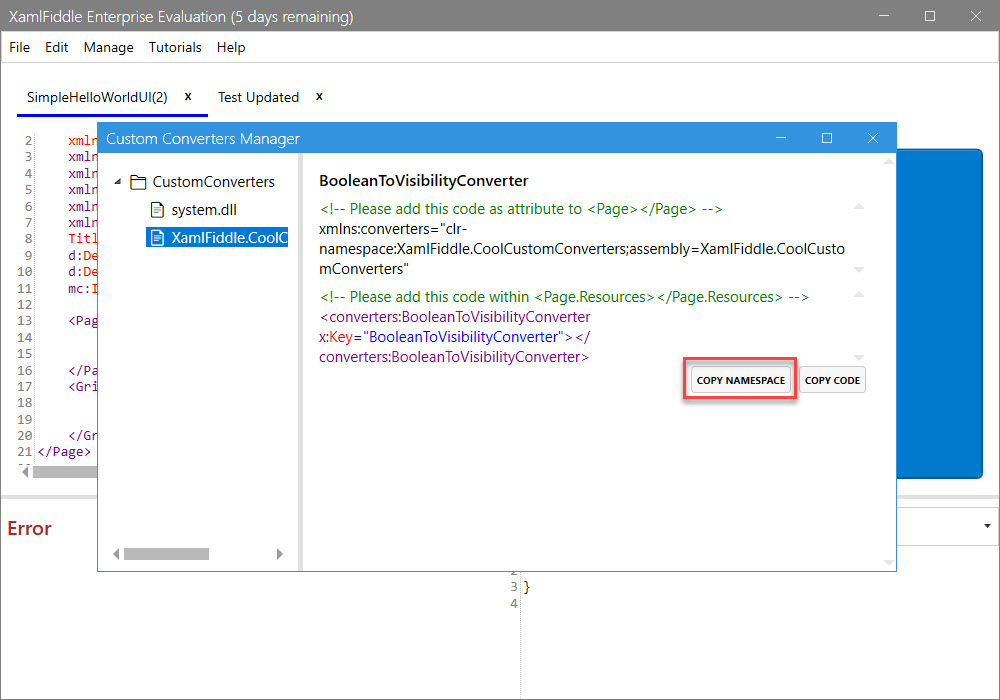
Copy the namespace of the BooleanToVisibilityConverter by clicking the Copy Namespace button:
-
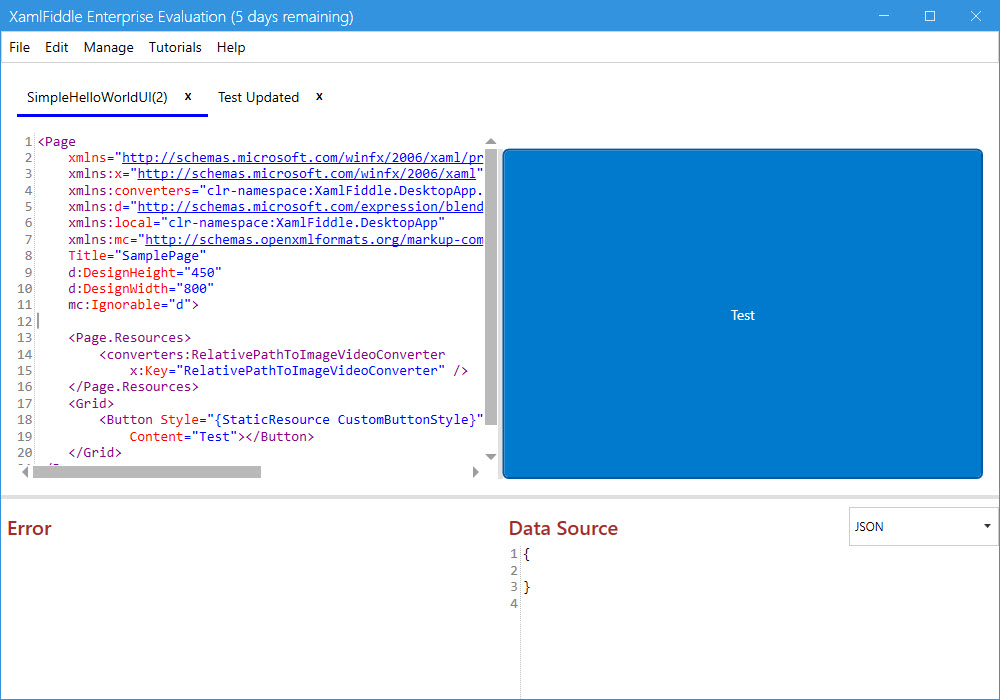
Close the Custom Converters Manager dialog and return to your XamlFiddle program:
-
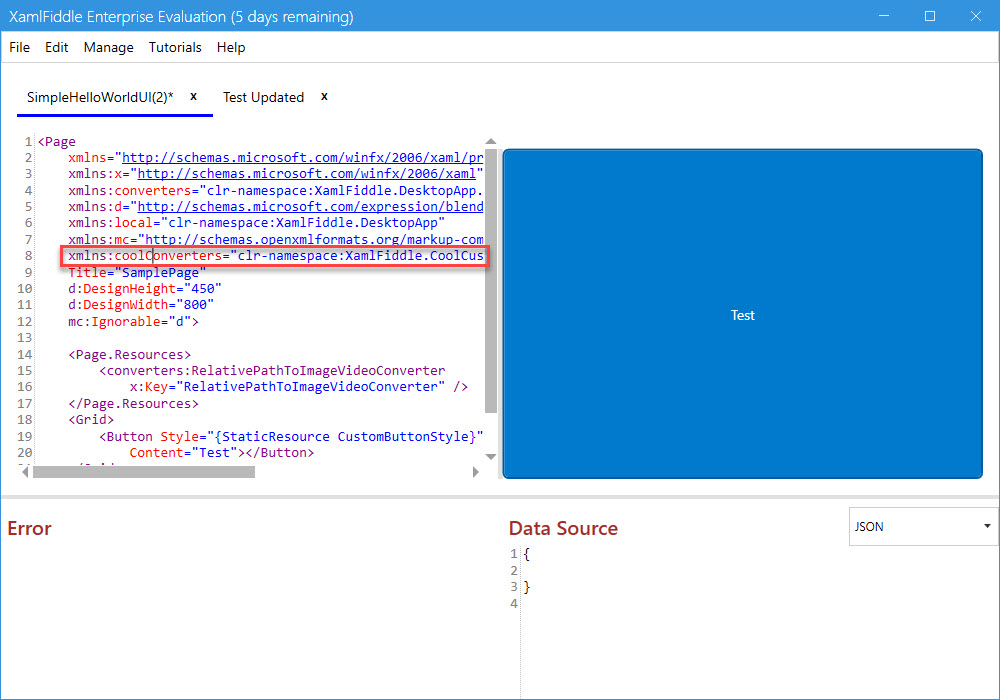
Paste the namespace code into the current XAML item, then adjust it as shown:
-
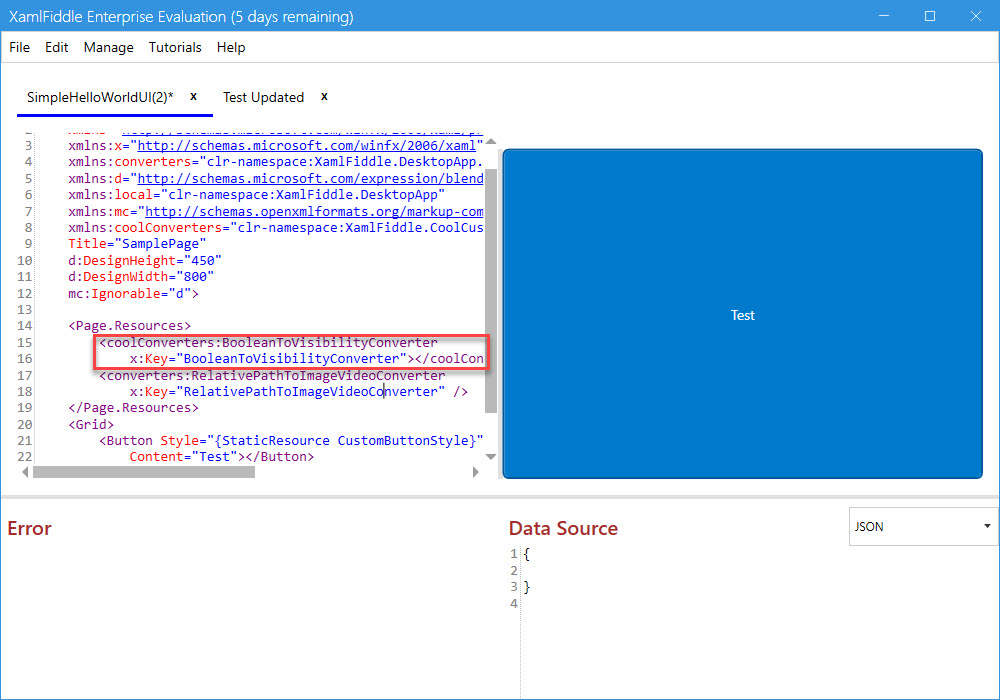
Add the following code to your current XAML item:
<coolConverters:BooleanToVisibilityConverter x:Key="BooleanToVisibilityConverter"></coolConverters:BooleanToVisibilityConverter>
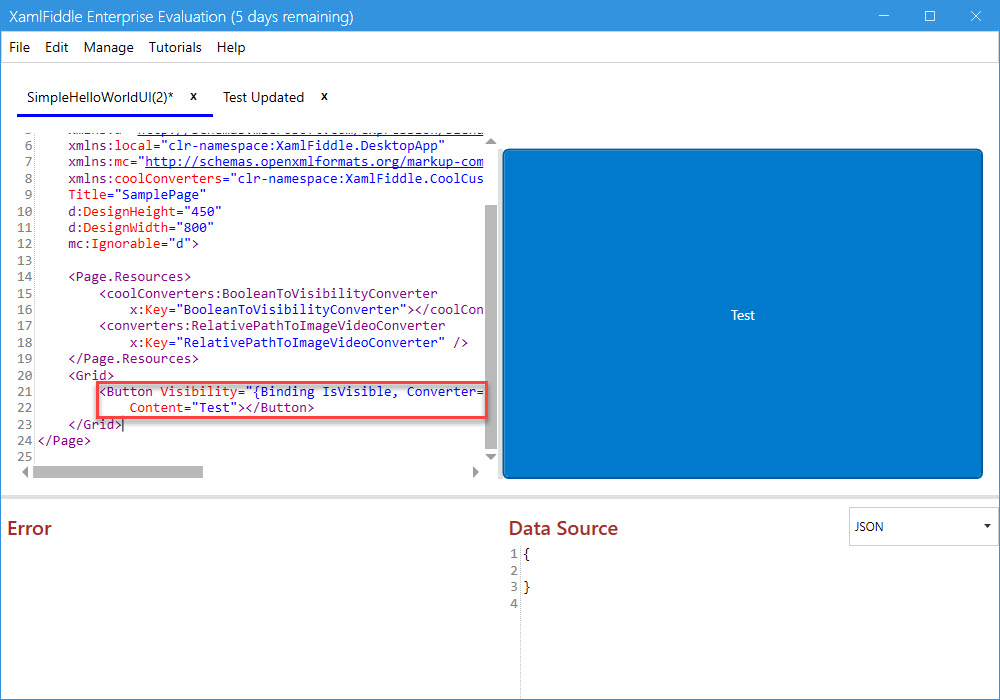
- Adjust the button visibility in the XAML item as follows:
<Button Visibility="{Binding IsVisible, Converter={StaticResource BooleanToVisibilityConverter}}" Style="{StaticResource CustomButtonStyle}" Content="Test"></Button>
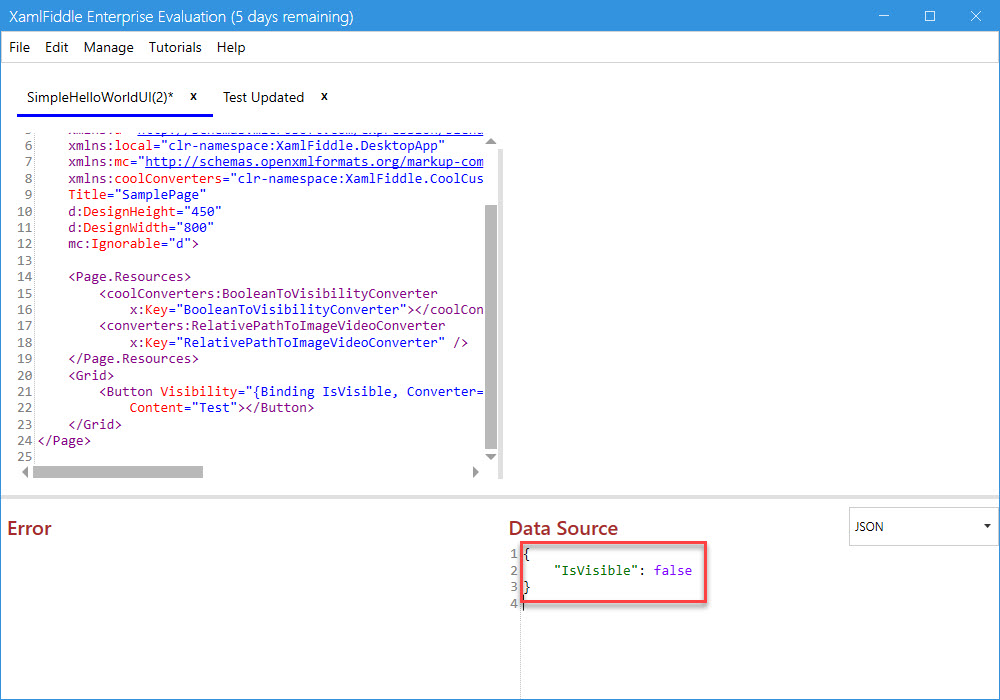
- In the Data Source section, add the following code to the JSON:
{
    "IsVisible": false
}
-
Your button will now be hidden as shown:
-
Finally, press Ctrl+S to save the current XAML item.
Deleting Custom Converters
XamlFiddle allows the deletion of custom converters uploaded by users, but system.dll converters cannot be deleted.
To delete a custom converter:
-
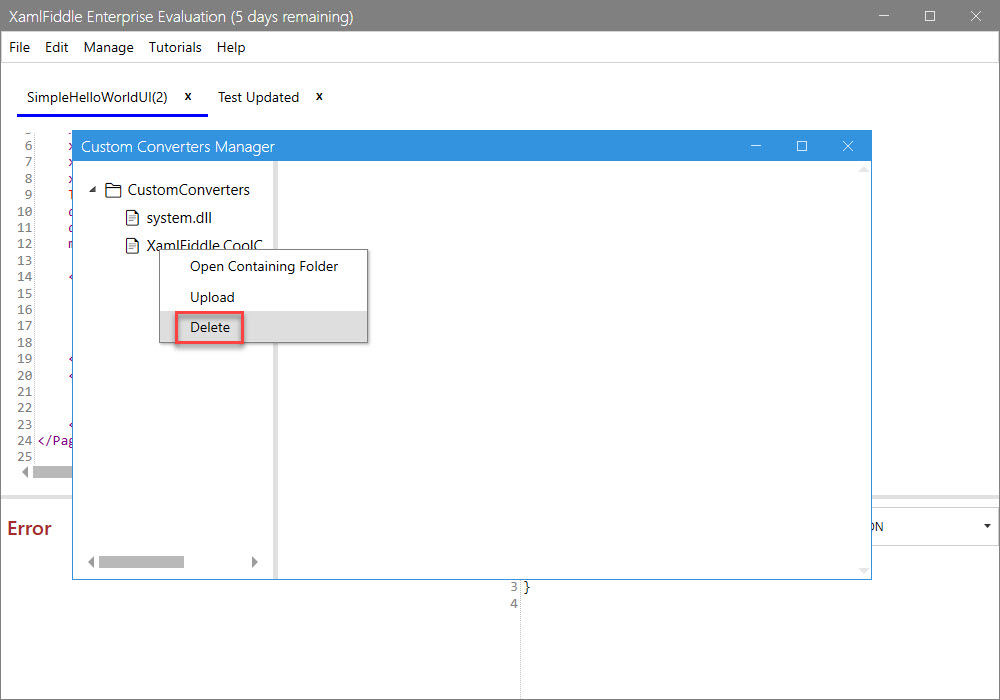
Right-click on the converter and select Delete:
-
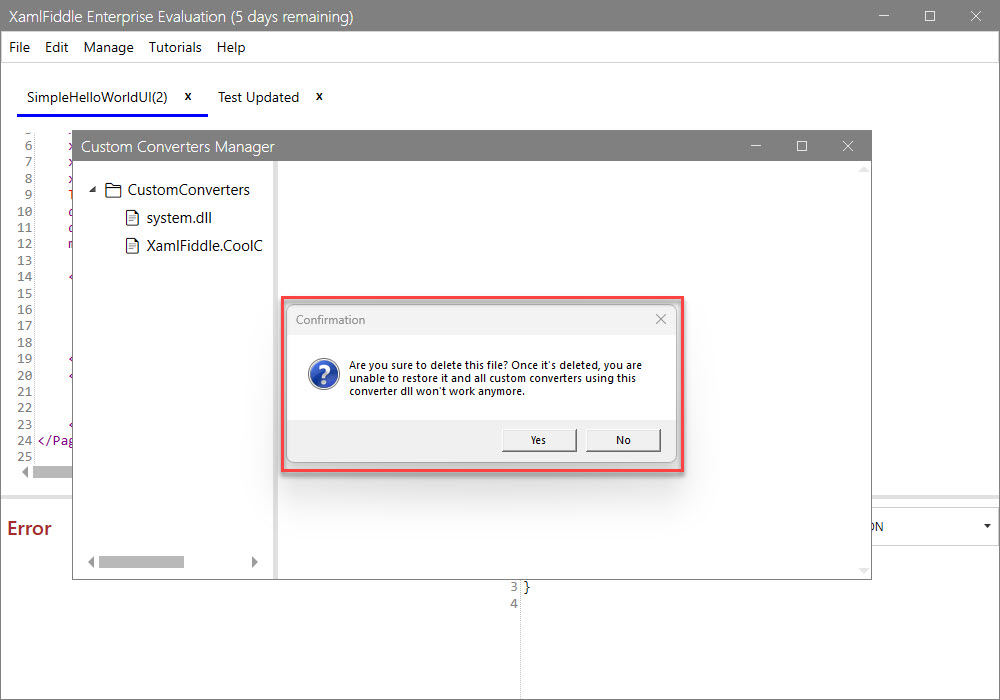
A confirmation dialog will appear:
-
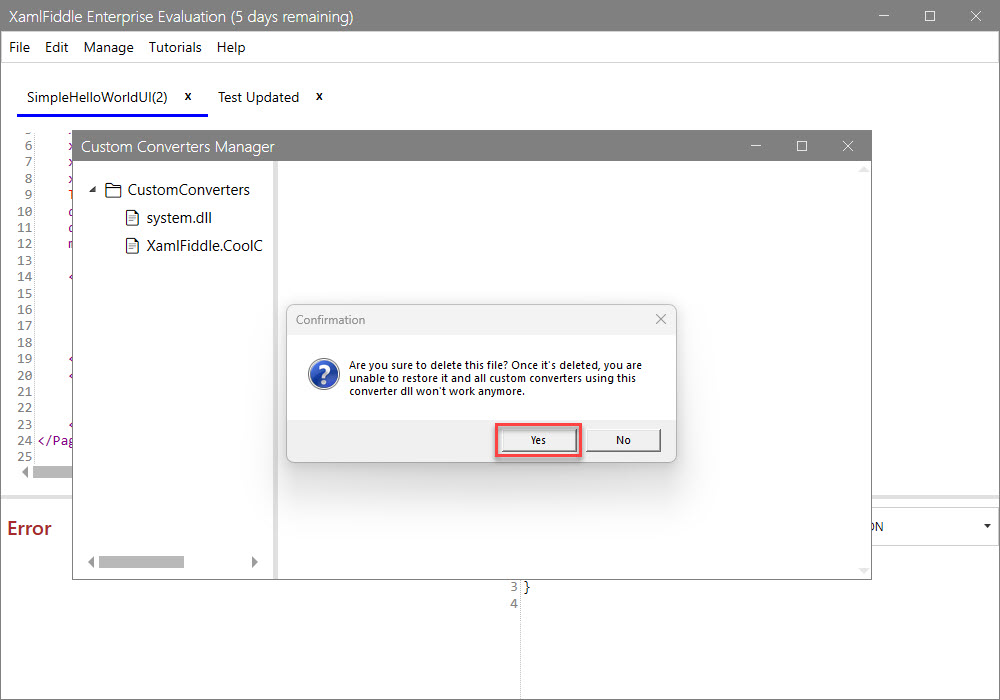
Click Yes to confirm the deletion:
-
After deletion, you will no longer see the converter in the list:
Opening the Containing Folder
To open the folder containing your custom converters:
-
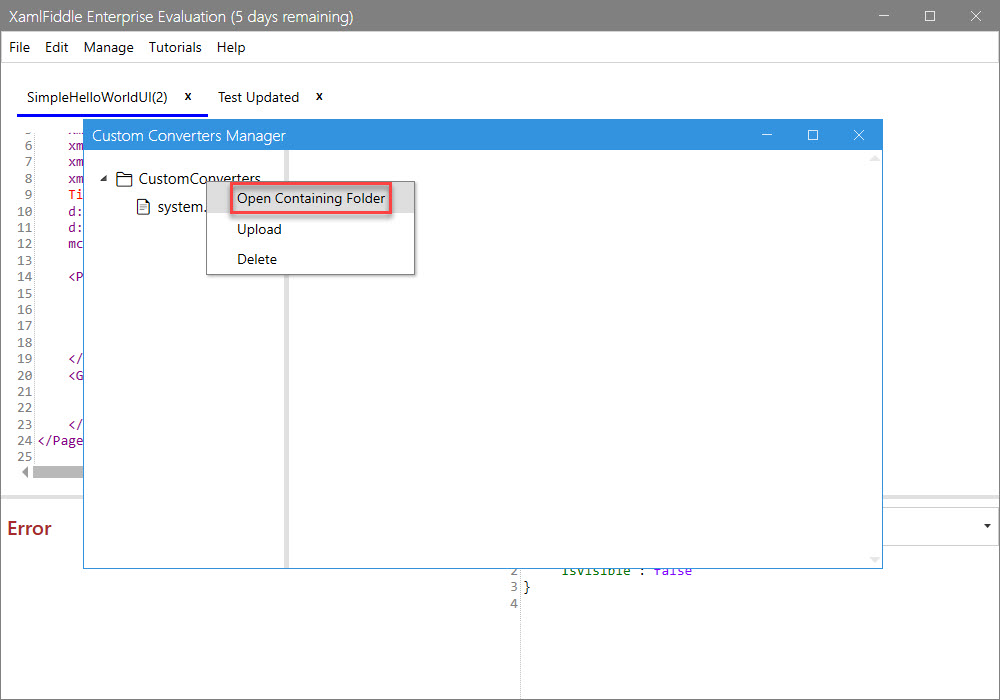
Right-click on the CustomConverters folder in the Custom Converters Manager and select Open Containing Folder:
-
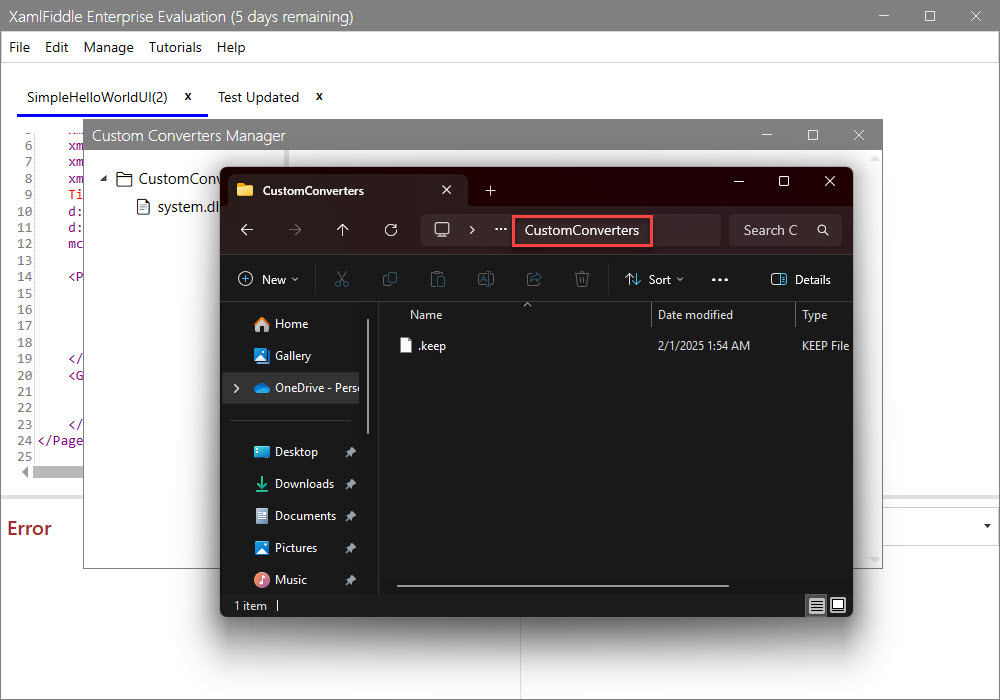
You will be taken to the folder location where your converters are stored: